The workbench
Tabs, per-tab history, breadcrumbs, the status bar, zoom and the command palette.
Loupe holds several pieces of work at once rather than one. Opening an object does not cost you the list it came from, and following a chain — a pod, its ReplicaSet, the Deployment above it — is reversible in both directions.
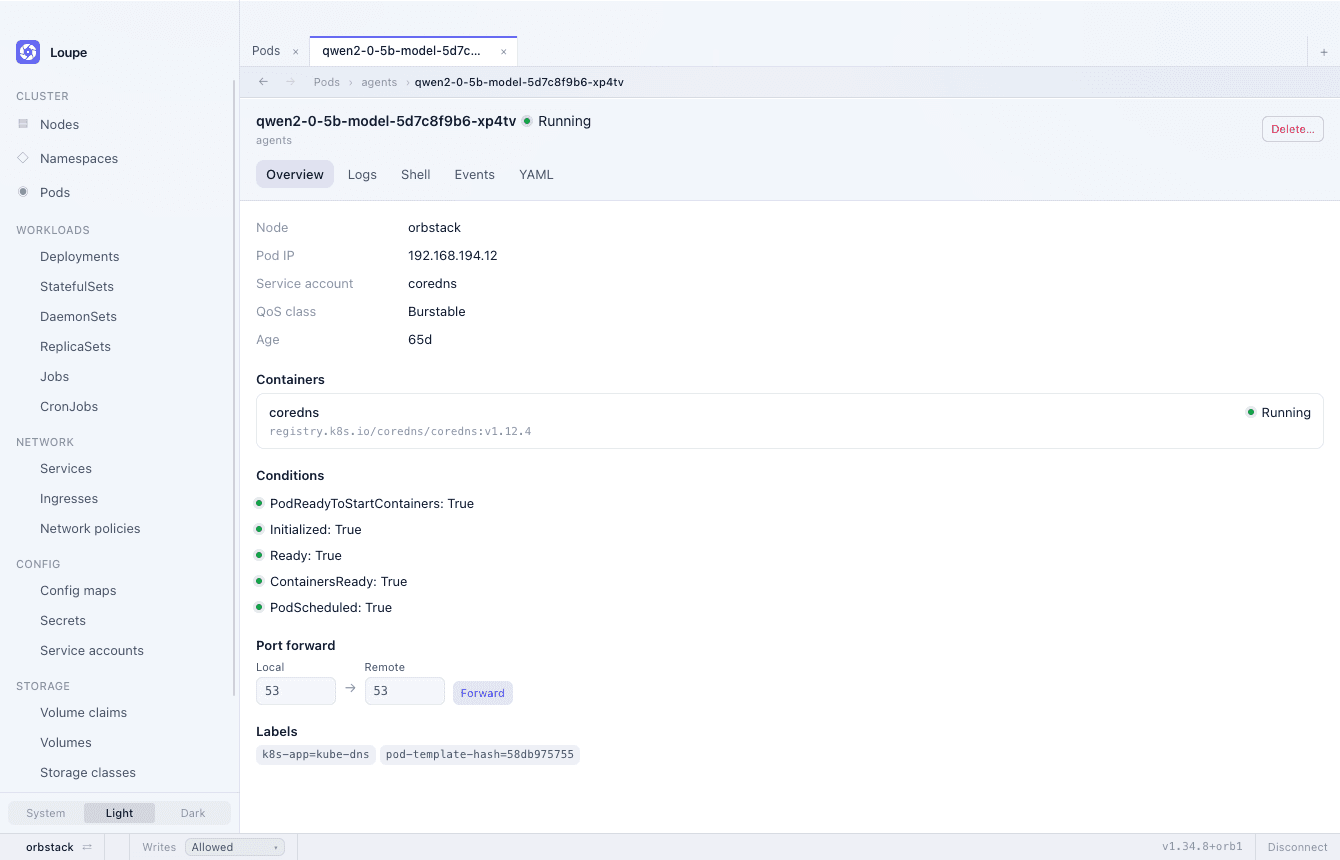
Tabs
⌘T opens a tab on whatever is showing, ⌘W closes it, and ⌘1–⌘9 reach one by position. ⌘-clicking a row — or a number on the dashboard — opens it in a tab of its own.
Each listing remembers its own namespace, search and sort, so drilling into a row and coming back returns the view as you left it — and two tabs on the same kind can be scoped to different namespaces.
Back and forward
Every tab keeps its own history, walked with ⌘[ and ⌘] or the arrows above the view.
The breadcrumb above a detail view says where the object sits — kind,
namespace, name — rather than replaying how you arrived. The namespace
crumb opens that kind's listing scoped to the namespace: on
Deployments › shop › api, shop opens Deployments filtered to
shop.
Status bar
One line at the foot of the window carries the cluster, its write guard, the server version, the count of problems and any pending update. It does not move as you navigate, and a protected or read-only guard tints it, so a production cluster does not look like a local one.
Command palette
⌘K opens the palette. It runs commands — switch context, change theme, check for updates, open Problems — and searches the whole cluster for objects by name. ? anywhere outside a text field lists every shortcut; see keyboard shortcuts.
Zoom
⌘+, ⌘− and ⌘0 scale the whole interface, from the keyboard, the View menu or the palette. The size is remembered across launches.
Appearance
Light, dark, or following the system — from the switch at the foot of
the rail or the palette, persisted in
settings.json.